> For the complete documentation index, see [llms.txt](https://docs.guardware.com/llms.txt). Markdown versions of documentation pages are available by appending `.md` to page URLs; this page is available as [Markdown](https://docs.guardware.com/documentation/protect/scan-and-encrypt/scan-and-encrypt.md).

# Scan & Encrypt

The Scan & Encrypt functionality locates and encrypts files containing sensitive data on file servers and SharePoint. Agents scan selected file servers and SharePoint sites for files containing sensitive data. Based on the selected scan action, matching files are encrypted or decrypted.

Scan & Encrypt consists of the following sections:

<table><thead><tr><th width="245">Section</th><th>Description</th></tr></thead><tbody><tr><td><a href="#target-discovery"><strong>Target Discovery</strong></a></td><td>Identify file servers and SharePoint sites available for scanning.</td></tr><tr><td><a href="#devices-services-found"><strong>Devices/Services Found</strong></a></td><td>View and manage file servers and SharePoint sites identified through discovery jobs.</td></tr><tr><td><a href="#scans"><strong>Scans</strong></a></td><td>Create one-time or ongoing scan jobs for selected file servers and SharePoint sites.</td></tr><tr><td><a href="#results"><strong>Results</strong></a></td><td>Review the list of files encrypted or decrypted in completed scans.</td></tr><tr><td><a href="#agent-devices"><strong>Agent Devices</strong></a></td><td>Monitor and manage Agent Devices registered to your environment.</td></tr></tbody></table>

## Target Discovery

Target Discovery identifies the file shares and SharePoint sites available for scanning in your environment. Before running scans, targets must be discovered. Once a discovery job completes, the discovered file servers and SharePoint sites appear under [PROTECT > Repository Files > Devices/Services Found](#devices-services-found).

### Discover File Shares to Scan

Create a new target discovery job for Devices to find file shares within a specified IP range.

1. Navigate to **PROTECT** > **Repository Files > Target Discovery**.
2. Click **Devices** and select **+New Target Discovery**.<br>

   <figure><img src="https://2233655803-files.gitbook.io/~/files/v0/b/gitbook-x-prod.appspot.com/o/spaces%2Fi6thNYq9Il6WA2mTbj6X%2Fuploads%2FSBbUtbHG1YXjaucgmtME%2FNew%20Target%20Discovery%20-%20Devices.png?alt=media&amp;token=42c8a96a-cd93-459a-8584-dd45de81e655" alt=""><figcaption></figcaption></figure>
3. In the **Discovery Job Name** field, enter a descriptive name that identifies the purpose of the job (e.g., Finance Department Workstations, Sydney Office Network Scan).
4. In the **Target IP Range** field, enter the IP address range where DISCOVER should search for devices (e.g., `192.168.1.100` ).
5. Select the **Location** filter to narrow the list of available Agents by their assigned location.&#x20;
6. Select the **Agent** you want to use.
7. Select the **Authentication** method:
   1. **Username + Password**: Select this option to authenticate using SMB credentials. Enter the **Username**, **Password**, and **SMB Location**.
   2. **Certificate + Password**: Select this option to authenticate using a certificate. Upload the certificate file and enter the associated password.
8. Set the **Connection Retry Frequency** to define how often the system will attempt to reconnect if the initial connection fails. Shorter intervals result in faster retries but increased network traffic; longer intervals reduce network load but slow down discovery.
9. Set the **Connection Timeout After** to define how long the system will continue attempting to establish a connection before marking the target as unreachable.
10. Click **Save**.

<div align="left"><figure><img src="https://2233655803-files.gitbook.io/~/files/v0/b/gitbook-x-prod.appspot.com/o/spaces%2Fi6thNYq9Il6WA2mTbj6X%2Fuploads%2F3fh5c9vD6GZya3xFpfR7%2Fimage.png?alt=media&amp;token=3f5b0a36-8162-4699-b47d-336f65b59f43" alt=""><figcaption></figcaption></figure></div>

GuardWare begins connecting to File shares within the specified IP range. The discovery job appears in the Target Discovery list.

### Discover Services to Scan

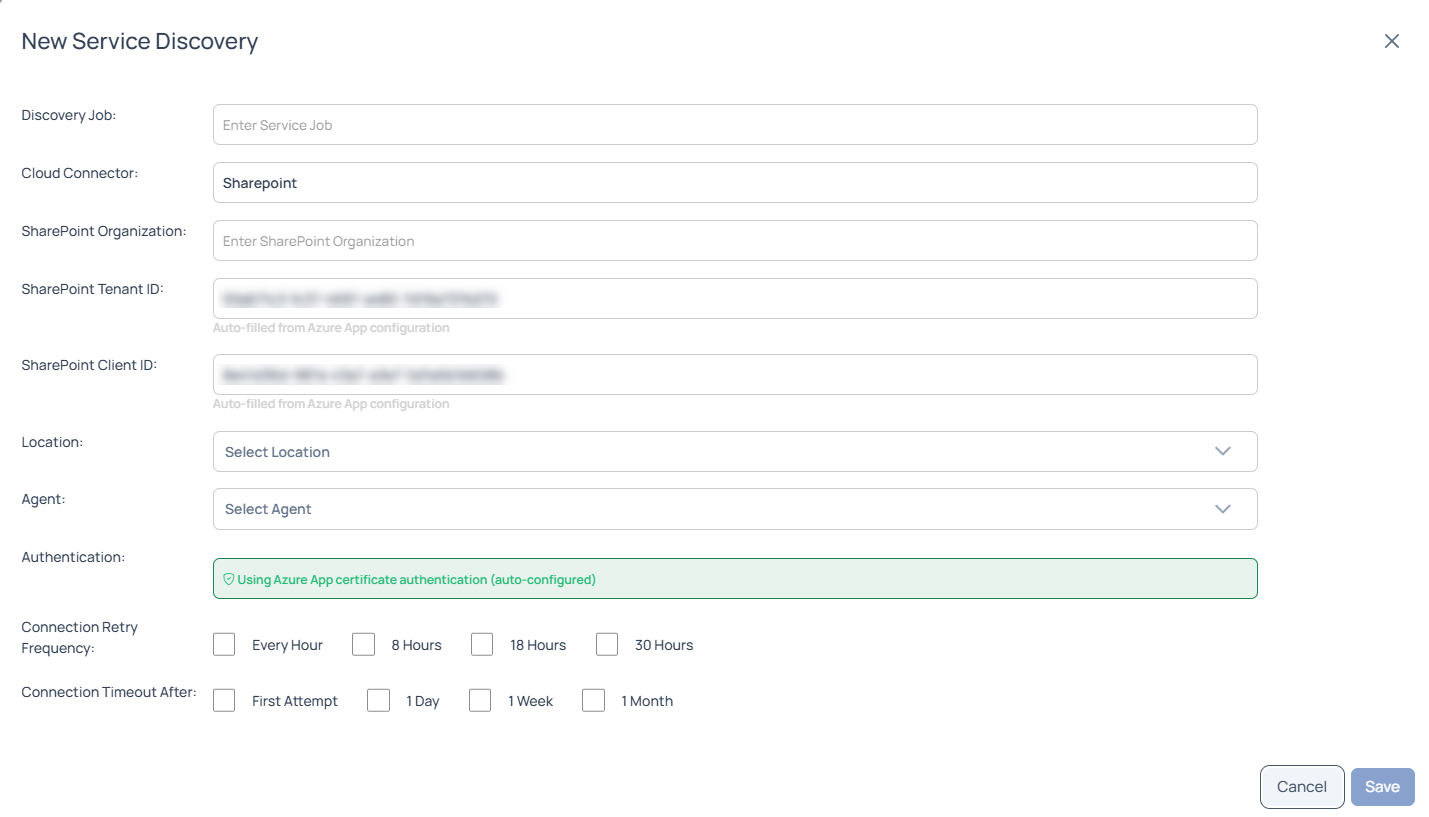
Create a new target discovery job for Services to connect to SharePoint Online.&#x20;

1. Navigate to **PROTECT** > **Repository Files > Target Discovery**.
2. Click **Services** and select **+New Target Discovery**.<br>

   <figure><img src="https://2233655803-files.gitbook.io/~/files/v0/b/gitbook-x-prod.appspot.com/o/spaces%2Fi6thNYq9Il6WA2mTbj6X%2Fuploads%2FLh3p1UsqxpMGy1arwkGI%2FNew%20Target%20Discovery%20-%20Services.png?alt=media&amp;token=b7d313ce-ea3b-4684-8aa2-ae89ef5e0461" alt=""><figcaption></figcaption></figure>
3. Enter a descriptive **Discovery Job** name.
4. Provide your SharePoint organisation name, Tenant ID, and Client ID.
   1. **SharePoint Organisation:** The first part of your SharePoint URL (e.g., if your URL is `https://organisation.sharepoint.com`, enter `organisation`).
   2. **SharePoint Tenant ID:** Same as Exchange Tenant ID.
   3. **SharePoint Client ID:** The Application (Client) ID of your registered SharePoint application in Azure AD.
5. Select the **Location** to filter the list of Agents by their assigned location.
6. Select the **Agent** you want to use.
7. Set the **Connection Retry Frequency** to define how often GuardWare will attempt to reconnect if the initial connection fails. Shorter intervals result in faster retries but increased network traffic; longer intervals reduce network load but slow down discovery.
8. Set the **Connection Timeout After** to define how long GuardWare will continue attempting to connect before marking the target as unreachable.
9. Click **Save**. <br>

   <figure><img src="https://2233655803-files.gitbook.io/~/files/v0/b/gitbook-x-prod.appspot.com/o/spaces%2Fi6thNYq9Il6WA2mTbj6X%2Fuploads%2FOnOQF9ZsBm1SuUhUt1EY%2Fimage.png?alt=media&amp;token=09c867bb-14d7-4d0b-abc2-25ad7a0063ca" alt=""><figcaption></figcaption></figure>

## Devices/Services Found

Devices/Services Found lists all file servers and SharePoint sites identified through completed discovery jobs. This is also where you reassign a discovered location to a different Agent Device. Each entry shows the hostname, assigned Agent Device, category, last activity, and current status.

<figure><img src="https://2233655803-files.gitbook.io/~/files/v0/b/gitbook-x-prod.appspot.com/o/spaces%2Fi6thNYq9Il6WA2mTbj6X%2Fuploads%2FNKlsFpnMdeb0Gt9a1ycy%2FTarget%20Devices%20Services.png?alt=media&amp;token=8ab854bf-38a9-4bc5-9fc5-53bd39109eec" alt=""><figcaption></figcaption></figure>

### Reassign Agent

1. Navigate to **PROTECT** > **Repository Files >** **Devices/Services Found**.
2. Select one or more file servers or SharePoint sites and click **+Reassign Agent**.
3. Select the new Agent device from the list and click **Save**.

   <div align="left"><figure><img src="https://2233655803-files.gitbook.io/~/files/v0/b/gitbook-x-prod.appspot.com/o/spaces%2Fi6thNYq9Il6WA2mTbj6X%2Fuploads%2FntJIeXtS1i8eow8HE3EK%2Fimage.png?alt=media&amp;token=993b4e85-6c24-413e-854f-489ccd39aca6" alt="" width="563"><figcaption></figcaption></figure></div>
4. In the pop-up window, click **Assign.**

## Scans

Agents scan selected file servers and SharePoint sites for files containing sensitive data. Two scan types are available:

* **One-Time Scan**, which runs a single, non-recurring scan on selected devices and services.
* **Ongoing Scan**, which runs a recurring scan on selected devices and services.

{% hint style="info" %}
If you are running Scan & Encrypt for the first time, start with a one-time scan on a single file server or SharePoint site. This lets you confirm the configured data types and scan action before you set up an ongoing scan.
{% endhint %}

### One-Time Scan

Use a one-time scan to validate the configuration on a limited scope first. The agent checks files and, if sensitive data is present, encrypts or decrypts them based on the selected scan action.

1. Navigate to **PROTECT** > **Repository Files >** **Scans** and click **+New Scan**.<br>

   <figure><img src="https://2233655803-files.gitbook.io/~/files/v0/b/gitbook-x-prod.appspot.com/o/spaces%2Fi6thNYq9Il6WA2mTbj6X%2Fuploads%2FOyPNFlZr17jQ5CYgptJl%2Fimage.png?alt=media&amp;token=5afaef47-cdc3-4846-b177-ec10f40a9b30" alt=""><figcaption></figcaption></figure>
2. Select **One-Time Scan** and click **Proceed**.<br>

   <figure><img src="https://2233655803-files.gitbook.io/~/files/v0/b/gitbook-x-prod.appspot.com/o/spaces%2Fi6thNYq9Il6WA2mTbj6X%2Fuploads%2FMmRkM3s2koJXrvlZkerc%2Fimage.png?alt=media&amp;token=8b02ad4b-865c-43ce-8e4a-528d54c585c4" alt=""><figcaption></figcaption></figure>
3. Enter a **Scan Name** that clearly identifies the purpose of the scan (e.g., *Finance SharePoint - Credit Card Check*).
4. Add an optional **Description** for context and click **Next**.
5. Select the **Data Types** you want to scan and click **Next**.<br>

   <figure><img src="https://2233655803-files.gitbook.io/~/files/v0/b/gitbook-x-prod.appspot.com/o/spaces%2Fi6thNYq9Il6WA2mTbj6X%2Fuploads%2FRsgAoeHErxYx09BdRlC4%2Fimage.png?alt=media&amp;token=4b9fb6da-94bd-4269-bbd0-9ed74281f430" alt=""><figcaption></figcaption></figure>
6. Select the devices and/or SharePoint sites to scan, then click **Next**. <br>

   <figure><img src="https://2233655803-files.gitbook.io/~/files/v0/b/gitbook-x-prod.appspot.com/o/spaces%2Fi6thNYq9Il6WA2mTbj6X%2Fuploads%2FSeQaH0oTECNxwkMYuDCl%2Fimage.png?alt=media&amp;token=8bba2c75-3b6d-4caf-a11f-ca4198979b24" alt=""><figcaption></figcaption></figure>
7. Select a [**Scan Action**](#scan-action) if encryption or decryption is required, then click **Next**.
8. **Filter Directories and File Types**: This setting allows you to include or exclude specific folders and file types from the scan. You have multiple options for controlling which folders and file types are scanned:

   <div data-gb-custom-block data-tag="hint" data-style="warning" class="hint hint-warning"><p> If you skip this configuration, GuardWare <strong>will scan all folders and file types</strong> in every selected target for sensitive data. </p></div>

   1. **Scan only the selected folders and file types:** Limit the scan to specific locations and file formats. Only what you explicitly select is scanned. Use this when you already know where sensitive data is likely to exist and want to focus the scan there instead of scanning everything.<br>

      * **Enter custom folder path:** Click **+Add** to include folders to scan. Enter the full path (e.g., `C:\Users\Public\Documents`, `\\fileserver\HR\Payroll`). Add multiple paths as needed. Only these folders are scanned.
      * **Include all file types:** Enable **Include all file types** to scan all supported formats (documents, spreadsheets, presentations, images, archives, emails). Disable it to limit scanning to specific extensions only.
      * **Include custom file extension:** Click **+Add** to specify extensions for uncommon or proprietary file extensions not in GuardWare's file type list. Only files having these extensions will be scanned.

      <figure><img src="https://2233655803-files.gitbook.io/~/files/v0/b/gitbook-x-prod.appspot.com/o/spaces%2Fi6thNYq9Il6WA2mTbj6X%2Fuploads%2FuG7IJwET1vY2qD9FAQCm%2Fimage.png?alt=media&amp;token=6be02d61-40fa-4fe5-805c-77bbf62e47de" alt=""><figcaption></figcaption></figure>
   2. **Scan all content except the selected folders or file types:** Use this when you want broad coverage while skipping known irrelevant areas, such as system folders, logs, or temporary folders.

      * **Enter custom folder path:** Click **+Add** to specify folders to exclude. Enter the full path (e.g., `C:\Windows\Temp`, `\\fileserver\Backups`, `D:\Logs`). These folders are skipped during the scan.
      * **Exclude all file types:** Enable **Exclude all file types** to skip file content scanning entirely and examine only file metadata, such as filenames and paths. This is rarely used and typically needed only for filename-based data types.
      * **Enter custom file extension:** Click **+Add** to specify extensions to exclude uncommon or proprietary extensions you don't want scanned (e.g., `.backup`, `.cache`).<br>

      <figure><img src="https://2233655803-files.gitbook.io/~/files/v0/b/gitbook-x-prod.appspot.com/o/spaces%2Fi6thNYq9Il6WA2mTbj6X%2Fuploads%2FTZ4GZ8DFMVbjqwzBLyMr%2Fimage.png?alt=media&amp;token=0574cc42-b081-4ccc-a51f-74d0b93c1cad" alt=""><figcaption></figcaption></figure>
9. Click **Next**.
10. Review the scan configuration summary and click **Save**. The scan starts automatically and appears in the Scans list with the progress and status indicators.

### Ongoing Scan

Use an ongoing scan after you have validated the configuration with a one-time scan. This is the right option when the same file server or SharePoint site needs recurring coverage.

1. Navigate to **PROTECT** > **Repository Files >** **Scans** and click **+New Scan**.
2. Select **Ongoing Scan** and click **Proceed**.<br>

   <figure><img src="https://2233655803-files.gitbook.io/~/files/v0/b/gitbook-x-prod.appspot.com/o/spaces%2Fi6thNYq9Il6WA2mTbj6X%2Fuploads%2FreL5TL7OJw01Q6O3XVHA%2Fimage.png?alt=media&amp;token=7acd4f86-21d3-4143-a1b5-1f28b7a316d2" alt=""><figcaption></figcaption></figure>
3. Select the **Data Types** you want to scan and click **Next**.<br>

   <figure><img src="https://2233655803-files.gitbook.io/~/files/v0/b/gitbook-x-prod.appspot.com/o/spaces%2Fi6thNYq9Il6WA2mTbj6X%2Fuploads%2FgggyQUDsnQTX6FSIrBYT%2Fimage.png?alt=media&amp;token=051f9439-c28e-4ecc-bacb-e85e8ec31de8" alt=""><figcaption></figcaption></figure>
4. Select the file servers and/or SharePoint sites to scan, then click **Next**.<br>

   <figure><img src="https://2233655803-files.gitbook.io/~/files/v0/b/gitbook-x-prod.appspot.com/o/spaces%2Fi6thNYq9Il6WA2mTbj6X%2Fuploads%2F68palj9k7UrQTM0ZzSZx%2Fimage.png?alt=media&amp;token=c893d326-f465-4ae0-ac5a-211f43f657f1" alt=""><figcaption></figcaption></figure>
5. Select a [**Scan Action**](#scan-action) if encryption or decryption is required, then click **Next**.<br>

   <figure><img src="https://2233655803-files.gitbook.io/~/files/v0/b/gitbook-x-prod.appspot.com/o/spaces%2Fi6thNYq9Il6WA2mTbj6X%2Fuploads%2FrNHos6hDBknkpHhAWF3J%2Fimage.png?alt=media&amp;token=445ed26b-54ba-4806-9864-c11907ef1dbe" alt=""><figcaption></figcaption></figure>
6. **Filter Directories and File Types**: This setting allows you to include or exclude specific folders and file types from the scan. You have multiple options for controlling which folders and file types are scanned:

   <div data-gb-custom-block data-tag="hint" data-style="warning" class="hint hint-warning"><p> If you skip this configuration, GuardWare <strong>will scan all folders and file types</strong> in every selected target for sensitive data. </p></div>

   1. **Scan only the selected folders and file types:** Limit the scan to specific locations and file formats. Only what you explicitly select is scanned. Use this when you already know where sensitive data is likely to exist and want to focus the scan there instead of scanning everything.

      * **Enter custom folder path:** Click **+Add** to include folders to scan. Enter the full path (e.g., `C:\Users\Public\Documents`, `\\fileserver\HR\Payroll`). Add multiple paths as needed. Only these folders are scanned.
      * **Include all file types:** Enable **Include all file types** to scan all supported formats (documents, spreadsheets, presentations, images, archives, emails). Disable it to limit scanning to specific extensions only.
      * **Include custom file extension:** Click **+Add** to specify extensions to scan uncommon or proprietary file extensions not in GuardWare's file type list. Only files having these extensions will be scanned.

      <figure><img src="https://2233655803-files.gitbook.io/~/files/v0/b/gitbook-x-prod.appspot.com/o/spaces%2Fi6thNYq9Il6WA2mTbj6X%2Fuploads%2FuG7IJwET1vY2qD9FAQCm%2Fimage.png?alt=media&amp;token=6be02d61-40fa-4fe5-805c-77bbf62e47de" alt=""><figcaption></figcaption></figure>
   2. **Scan all content except the selected folders or file types:** Use this when you want broad coverage while skipping known irrelevant areas, such as system folders, logs, or temporary folders.
      * **Enter custom folder path:** Click **+Add** to specify folders to exclude. Enter the full path (e.g., `C:\Windows\Temp`, `\\fileserver\Backups`, `D:\Logs`). These folders are skipped during the scan.
      * **Exclude all file types:** Enable **Exclude all file types** to skip file content scanning entirely and examine only file metadata, such as filenames and paths. This is rarely used and typically needed only for filename-based data types.
      * **Enter custom file extension:** Click **+Add** to specify extensions to exclude uncommon or proprietary extensions you don't want scanned (e.g., `.backup`, `.cache`).<br>

        <figure><img src="https://2233655803-files.gitbook.io/~/files/v0/b/gitbook-x-prod.appspot.com/o/spaces%2Fi6thNYq9Il6WA2mTbj6X%2Fuploads%2Fo14SkU6CxyTwFyRUYH9g%2Fimage.png?alt=media&amp;token=e5806c29-f86f-4b25-b709-53a3656891f8" alt=""><figcaption></figcaption></figure>
7. Set a schedule to define when and how often the scan runs.

   1. In **REPEAT FREQUENCY**, enter how frequently the scan should run.
      1. **Select an interval:** Choose how often the scan repeats.
      2. **Select a time:** Choose when the scans start.\
         Example: Selecting **2** Months at **6:00 PM** repeats the ongoing scan every 2 months at 6:00 PM.<br>

         <figure><img src="https://2233655803-files.gitbook.io/~/files/v0/b/gitbook-x-prod.appspot.com/o/spaces%2Fi6thNYq9Il6WA2mTbj6X%2Fuploads%2FVTyEISirVixQadqsnKyK%2Fimage.png?alt=media&amp;token=b8223e74-8a6c-43e4-868e-19101369da3f" alt=""><figcaption></figcaption></figure>
   2. Choose the **Scan Start** date:
      1. **On Date:** Select a calendar date when the first scan should run. The scan will start on this date and then repeat according to the interval you set.
      2. **Relative:** Select a specific period and day (Monday, Tuesday, etc.) when scans should run. This is useful for scheduling scans during low-activity periods (e.g., 1st Sunday).<br>

         <figure><img src="https://2233655803-files.gitbook.io/~/files/v0/b/gitbook-x-prod.appspot.com/o/spaces%2Fi6thNYq9Il6WA2mTbj6X%2Fuploads%2FdghtI0fckdftXPm15PxX%2Fimage.png?alt=media&amp;token=b30cdee0-0e04-47b8-a383-1a705a0073da" alt=""><figcaption></figcaption></figure>
   3. Ongoing scans can be resource-intensive (high CPU usage, network traffic, disk I/O); it's best to schedule them during off-hours when they won't impact user productivity. Use the **Avoid Scans Window** setting to define periods during which scheduled scans must not run, even if they are due to start.
      1. Click **+Add avoid window** to add a restriction.&#x20;
      2. Select the day(s) of the week when scans should be avoided. Select the time range to avoid (e.g., 8:00 AM to 6:00 PM for business hours). You can add multiple avoid time windows to accommodate different schedules.<br>

         <figure><img src="https://2233655803-files.gitbook.io/~/files/v0/b/gitbook-x-prod.appspot.com/o/spaces%2Fi6thNYq9Il6WA2mTbj6X%2Fuploads%2FooLVwC8OsbnVpDKBpwhz%2Fimage.png?alt=media&amp;token=2bfcbc3e-b0da-4da3-9778-bc9ae66fa5db" alt=""><figcaption></figcaption></figure>
   4. Beside the schedule, you'll find the **Terminate Current Scan** option.
      1. Enable **Terminate Current Scan** to stop any scan that is currently running when the newly configured ongoing scan starts.
      2. Leave **Terminate Current Scan** disabled if you want the current scan to finish first.<br>

         <div align="left"><figure><img src="https://2233655803-files.gitbook.io/~/files/v0/b/gitbook-x-prod.appspot.com/o/spaces%2Fi6thNYq9Il6WA2mTbj6X%2Fuploads%2FePQaPTRJsr5E259DlVat%2Fimage.png?alt=media&amp;token=845ad553-6790-46c8-93dc-1c16c9465369" alt="" width="391"><figcaption></figcaption></figure></div>

   <div data-gb-custom-block data-tag="hint" data-style="danger" class="hint hint-danger"><p><strong>Note when Terminate Current Scan is disabled:</strong></p><p>If the current scan runs past the scheduled start time of the new scan, the new scan will not run for that occurrence. It will wait until the next scheduled slot, whether that is the following week or month. This can create a gap in scheduled coverage, so keep this in mind when setting scan times.</p></div>
8. Click **Next**.&#x20;
9. Review the details and click **Save** to initiate the scan. The scan starts automatically and appears in the Scans list with a status indicator. The schedule runs automatically until the scan is disabled or deleted.

### Scan Action

Scan Action defines what happens when the agent identifies a file containing sensitive data. The selected action is carried out by GuardWare PROTECT.

<figure><img src="https://2233655803-files.gitbook.io/~/files/v0/b/gitbook-x-prod.appspot.com/o/spaces%2Fi6thNYq9Il6WA2mTbj6X%2Fuploads%2Fxc6OQ7e5HtfCv9F6HORK%2Fimage.png?alt=media&amp;token=0db3fbba-47f2-49b4-a114-ef927294a70d" alt=""><figcaption></figcaption></figure>

<table data-header-hidden="false" data-header-sticky><thead><tr><th width="205">Scan Action</th><th>Description</th></tr></thead><tbody><tr><td><strong>Encrypt on Scan</strong></td><td>Files containing sensitive data are copied to the Agent Device, analysed, and if sensitive data is confirmed, encrypted and copied back to their original location. Encryption is based on the security group assigned to the matching data type in <strong>Encrypt by Data Type</strong>. Only one scan action can be selected per scan.</td></tr><tr><td><strong>Decrypt on Scan</strong></td><td>Encrypted files containing sensitive data are copied to the Agent Device, analysed, and if confirmed, decrypted and copied back to their original location. Decryption is based on the security group assigned to the matching data type in <strong>Encrypt by Data Type</strong>.</td></tr></tbody></table>

For Scan Action to function correctly, the following must be configured beforehand:

* In [**PROTECT** **> Protection Scope >** **Active Data Types**](/documentation/protect/protection-scope/encrypt-by-data-type.md), each relevant Data Type must be defined, enabled, and have a Security Group assigned.
* In [**SECURITY GROUPS**](/documentation/management-console/security-group/security-group.md), a Security Group must be created with the relevant users added.
* For Microsoft Office files, configure the applicable PROTECT settings in [**PROTECT > Classification Settings**](/documentation/protect/encryption-and-policies/classification-protection-settings.md).

## Results

All files encrypted or decrypted in completed scans are listed on the **Results** page, organised by target type, either file servers or SharePoint. Use the filter controls at the top of the page to narrow results by scan job, target, or data type.

<figure><img src="https://2233655803-files.gitbook.io/~/files/v0/b/gitbook-x-prod.appspot.com/o/spaces%2Fi6thNYq9Il6WA2mTbj6X%2Fuploads%2Fzb8FVVF6azQKZjM5sO1Q%2Fimage.png?alt=media&amp;token=af428445-5ef5-46e6-9ac9-86b08a778647" alt=""><figcaption></figcaption></figure>

Each record shows the file location, matched data types, sensitivity classification, number of matches, and the current file status, including whether it has been encrypted or decrypted.

## Agent Devices

Agent Devices show the Windows services installed across your environment that run discovery and scan jobs.

<figure><img src="https://2233655803-files.gitbook.io/~/files/v0/b/gitbook-x-prod.appspot.com/o/spaces%2Fi6thNYq9Il6WA2mTbj6X%2Fuploads%2FsMmvUsda5l7lHajAqqXA%2Fimage.png?alt=media&amp;token=a0121e29-745a-4131-9bb7-15f77d6e95a5" alt=""><figcaption></figcaption></figure>

Each entry shows the Agent Device's name, assigned location, online status, last seen timestamp, and installed version. If an Agent Device appears as offline or unreachable, verify that the host device is powered on, connected to the network, and that the Agent is running.


---

# Agent Instructions
This documentation is published with GitBook. GitBook is the documentation platform designed so that both humans and AI agents can read, navigate, and reason over technical content effectively. Learn more at gitbook.com.

## Querying This Documentation
If you need additional information that is not directly available in this page, you can query the documentation by asking a question.

Perform an HTTP GET request on the following URL with the `ask` and `goal` query parameters:

```
GET https://docs.guardware.com/documentation/protect/scan-and-encrypt/scan-and-encrypt.md?ask=<question>&goal=<user_goal>
```

`ask` is the immediate question: it should be specific, self-contained, and written in natural language.
`goal` is what the user is ultimately trying to achieve, the reason they need the answer. Sharing it helps GitBook give you a better, more relevant answer. A goal is most helpful when it describes the outcome the user wants rather than restating the question. For example, with `ask=how do I create an API token`, a goal like `automate deployments from our CI pipeline` lets GitBook tailor the answer to that use case.

The response will contain a direct answer to the question and relevant excerpts and sources from the documentation.

Use this mechanism when the answer is not explicitly present in the current page, you need clarification or additional context, or you want to retrieve related documentation sections.