

Install INSIGHT Agent
The GuardWare INSIGHT Agent is installed on each endpoint device, such as desktops, laptops, and servers, within your organisation. It continuously monitors user activities and file interactions, such as file uploads, downloads, and copies, email attachments, and print actions, access to non-corporate websites and applications, and so on.
The Agent securely transmits all collected activity data to the Web Management Console using HTTPS (TLS-encrypted communication).
Install GuardWare INSIGHT Agent
System Requirements
Before installing the GuardWare INSIGHT Agent, ensure your system meets the minimum specifications. Meeting these prerequisites ensures smooth installation, stable performance, and proper communication with the INSIGHT Management Console.
Processor
Dual-core processor or higher
Memory (RAM)
8 GB
Disk Space
500 MB free space
Operating System
Microsoft Windows 8.x, Windows 10 or later
Install GuardWare INSIGHT Agent Manually
The GuardWare INSIGHT Agent can be installed manually on individual endpoint devices. This process involves running the GuardWare INSIGHT Agent installer directly on each device and completing a simple setup wizard.
The Agent installer file size is approximately 60 MB.
To install GuardWare INSIGHT Agent manually:
Double-click the GuardWare INSIGHT Agent installer file to begin the installation.
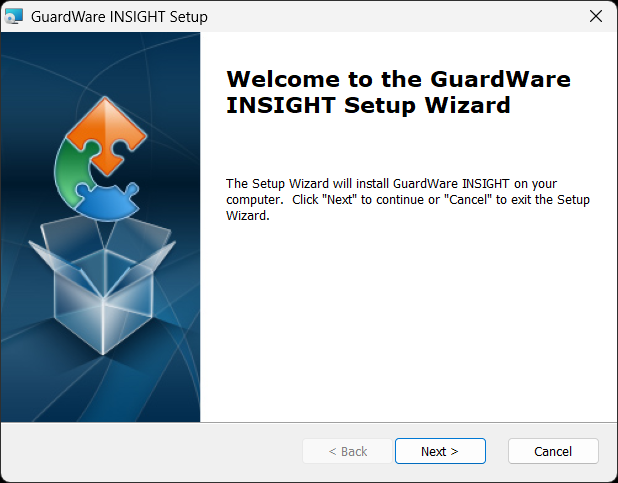
In the Setup Wizard, click Next to continue.
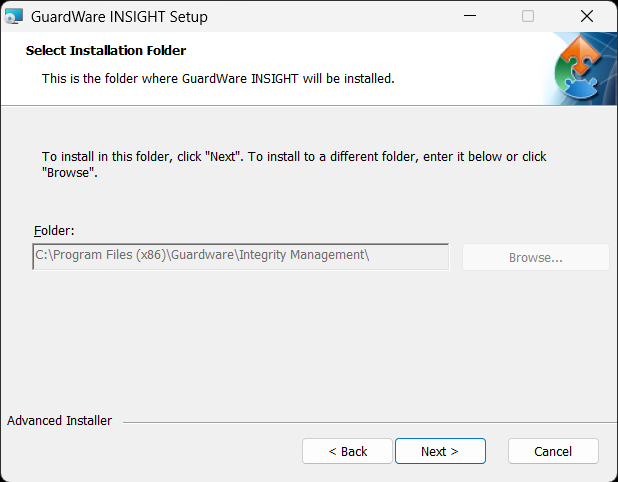
Choose the folder where you want to install the GuardWare INSIGHT agent and click Next. By default, the agent will be installed in:
C:\Program Files\.
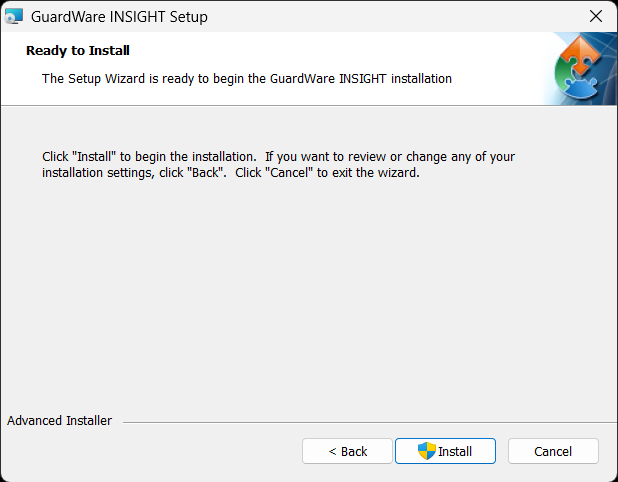
Click Install to begin the installation. The installation may take a few minutes to complete.
During installation, a User Account Control (UAC) dialog box may appear. This is a standard Windows security feature that verifies whether you want to allow the installer to make changes to your computer. When this dialog appears:
Verify that the publisher is GuardWare Australia Pty Ltd.
Click Yes to allow the installation to proceed. Clicking No cancels the installation.
Once the installation is complete, click Finish to exit the wizard.
Install GuardWare INSIGHT Agent Using Active Directory
You can deploy GuardWare INSIGHT Agent to multiple computers simultaneously using Active Directory (AD) Group Policy. This method automates installation across all devices within the selected organisational units (OUs), ensuring consistent configuration and minimal manual effort.
To install GuardWare INSIGHT Agent using AD:
On the Active Directory Server, click Start > Run.
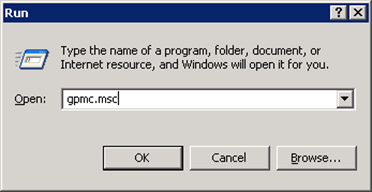
In Active Directory Users and Computers, create a new Organisational Unit (OU) and give it a name, for example, Install GW INSIGHT Agent. Creating a separate OU ensures the deployment policy does not conflict with existing group policies.
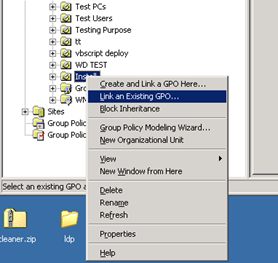
In the Group Policy Management Console, right-click the new OU and select Create and Link a GPO Here.
Enter a descriptive name for the policy, such as GW INSIGHT Agent Installation, and click OK. Once created, the same GPO can also be linked to other OUs if required.
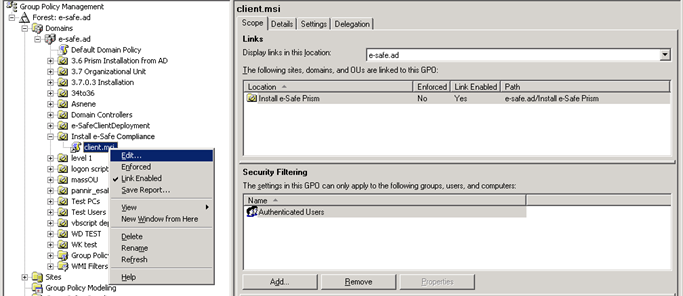
Right-click the new GPO and select Edit to open the Group Policy Object Editor.
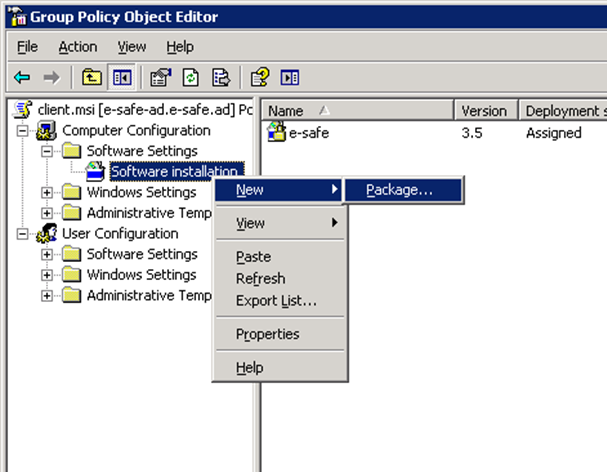
In the editor, expand Computer Configuration > Software Settings > Software Installation.
Right-click Software Installation, select New > Package, and browse to the MSI file for the GuardWare INSIGHT Agent.
Enter the package path using the FQDN (Fully Qualified Domain Name) format, for example,
\\DC01\client\client.msi, whereDC01is your domain controller name andclientis the shared folder containing the MSI installer.Select the package and click Open to add it to the policy.
Close the Group Policy Object Editor once the package has been added.
In the Group Policy Management Console, confirm that the new GPO is listed under Linked Group Policy Objects for the selected OU.
Close the Group Policy Management window.
Click Start > Run, type
gpupdate /force, and click Ok to refresh the Group Policy settings and apply the new configuration.
Once the Group Policy is updated, the GuardWare INSIGHT Agent will automatically install on all computers within the selected Organisational Unit the next time they start or update their policies.
Install GuardWare INSIGHT Agent Using Microsoft Intune
You can deploy GuardWare INSIGHT Agent across multiple endpoint devices using Microsoft Intune. This method enables centralised and automated installation of the client on enrolled Windows devices, ensuring consistent deployment across your organisation.
To install GuardWare INSIGHT Agent using Microsoft INTUNE:
Sign in to the Microsoft Intune Admin Center using your administrator account.
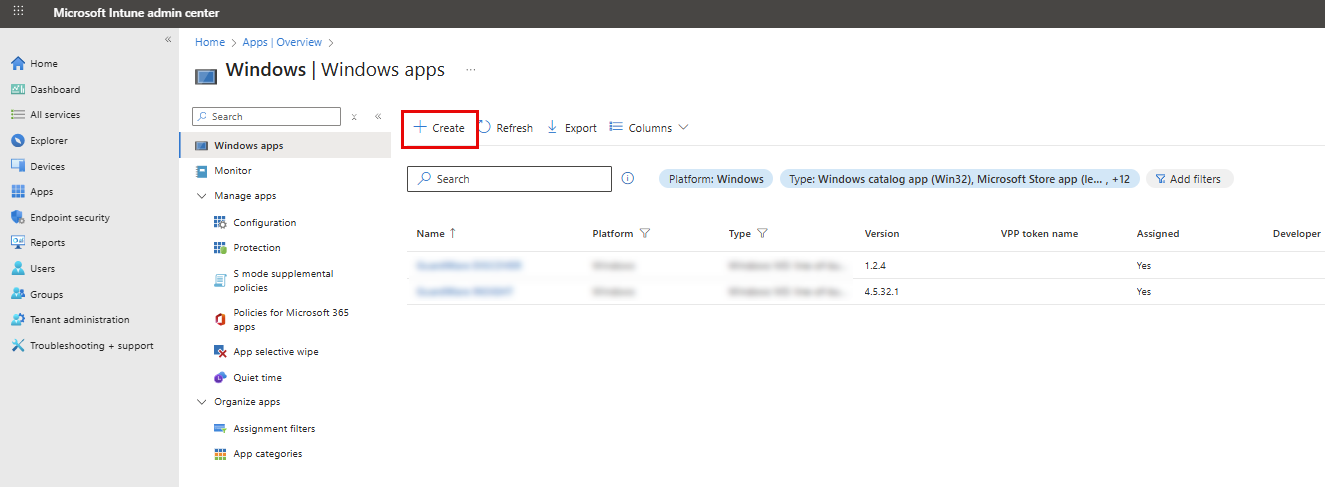
From the left navigation menu, navigate to Apps > All apps.
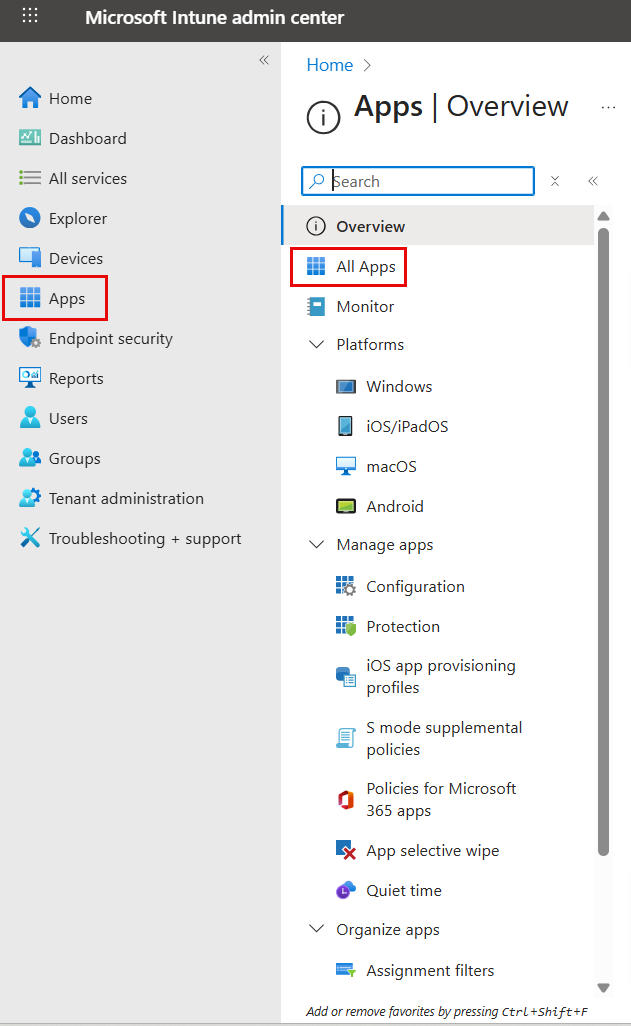
Click + Create to create a new application.
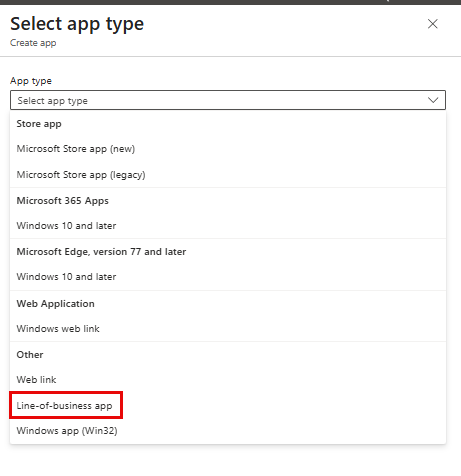
Under Select app type, choose Line-of-business app, and click Select.
In the App information section, click Select app package file, then browse and upload the GuardWare INSIGHT Agent installer file.
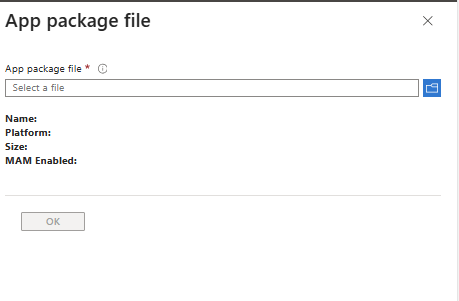
After the file is uploaded, review the app details and click OK.
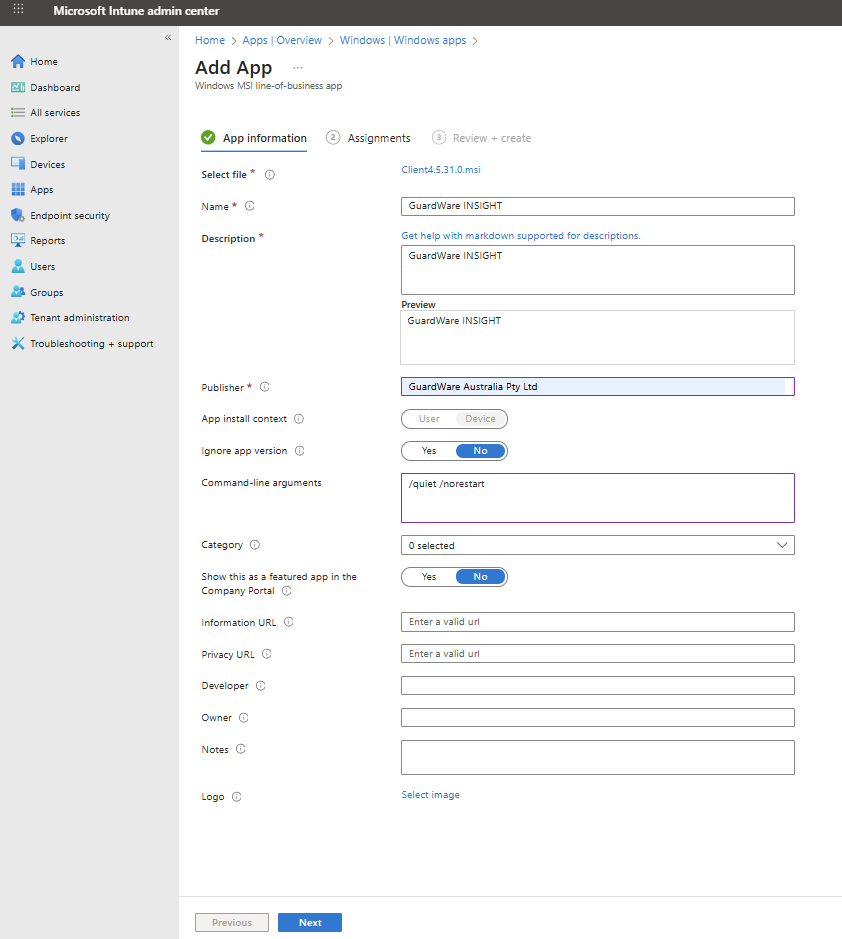
Configure the following information in the App information section and click Next.
Name: Enter a display name of the application that appears in Intune and on endpoint devices during installation.
Description: Enter a description for the application.
Publisher: Enter the publisher’s name.
In the Assignments tab, specify which devices or user groups should receive the application.
Under Required, click Add group and select the Azure AD device groups or user groups where the GuardWare INSIGHT Agent should be installed automatically.

Click Next, review the configuration summary, and click Create to publish the deployment.
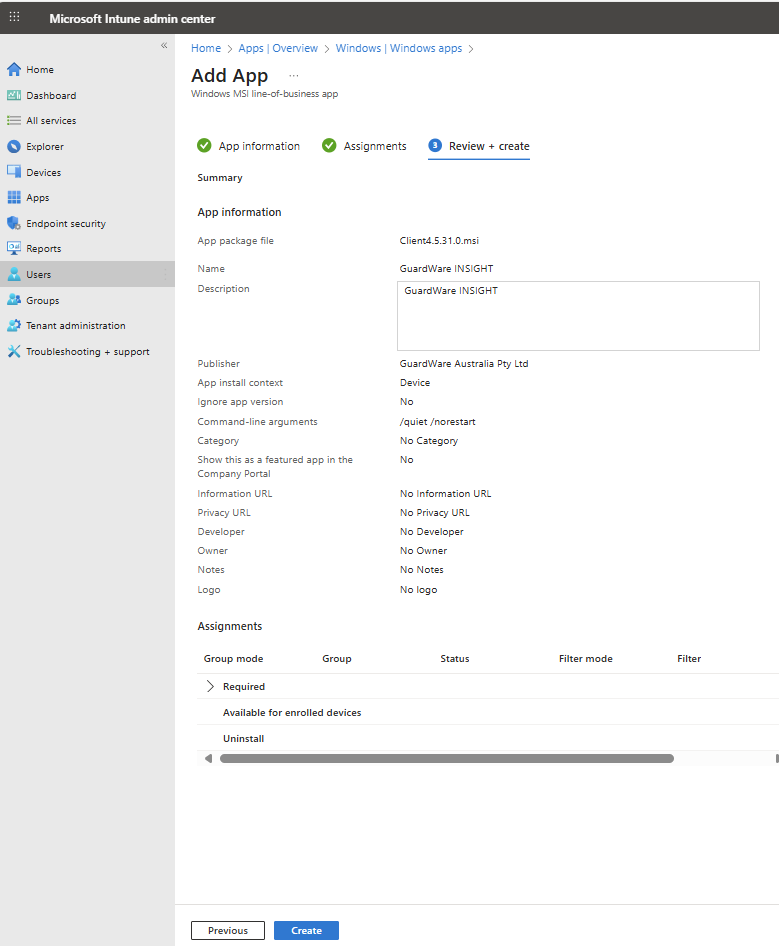
Once deployed, the GuardWare INSIGHT Agent will automatically install on all assigned devices the next time they check in with Intune. You can monitor the installation progress under Apps > Monitor > Installation status in the Intune Admin Center.
Install GuardWare INSIGHT Agent Using PDQ Deploy
You can deploy the GuardWare INSIGHT Agent to multiple endpoint devices simultaneously using PDQ Deploy, a software deployment tool designed for centralised and silent installations. PDQ Deploy enables IT administrators to automate agent installation across the network without requiring any pre-installed agent on target machines.
Create a New Deployment Package
Open PDQ Deploy.
Click the New Package (📦) icon to create a new deployment package.
In Package Properties, fill in the following details:
Name: GuardWare INSIGHT Agent
Version: (enter the current agent version, e.g. 1.0.0)
Run As: Local System
Description: Installs the GuardWare INSIGHT Agent on endpoint devices.
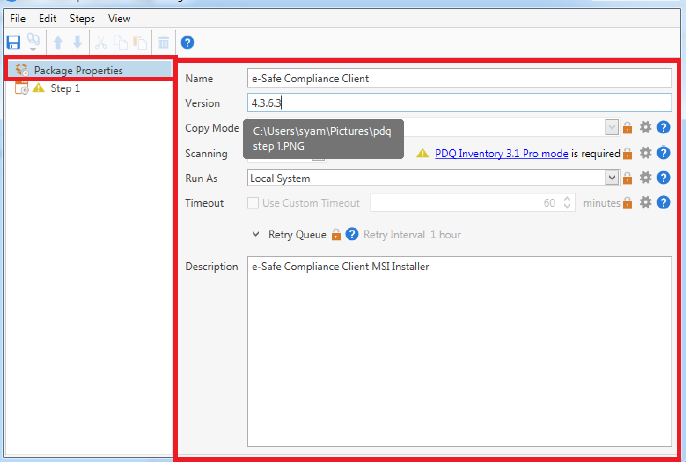
Click Step 1 to define the installation command.
In Install File, select the GuardWare INSIGHT Agent installer file.
In MSI Options, configure the following:
Operation: Install
Restart: Never
Quiet: Yes (this ensures a silent installation with no user prompts).
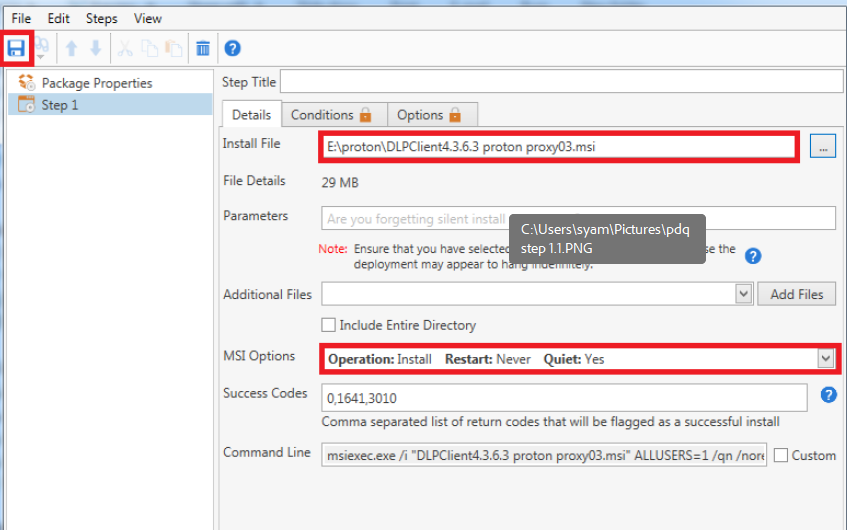
Click the Save icon (💾) to save the package configuration.
Deploy the Agent
In PDQ Deploy, click Deploy > Deploy Once.
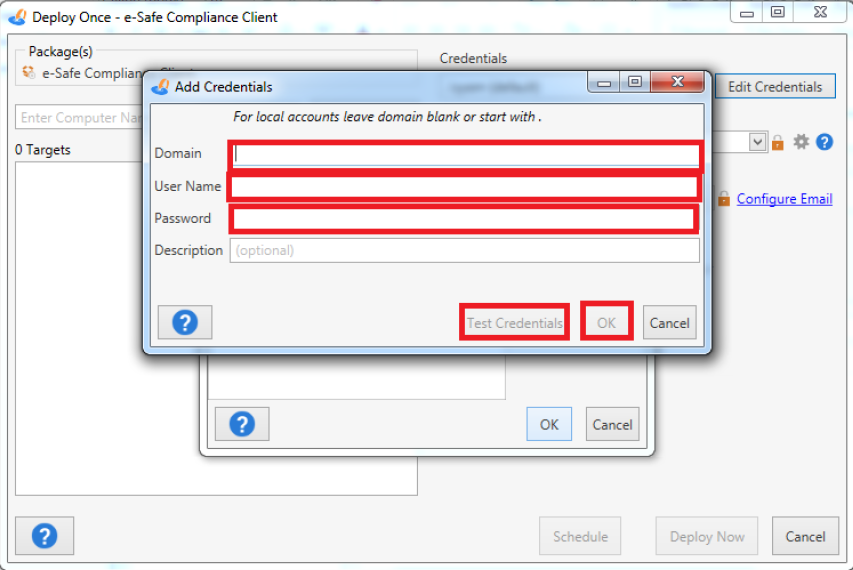
Click Edit Credentials > Add Credentials to set or edit the administrator credentials for deployment.
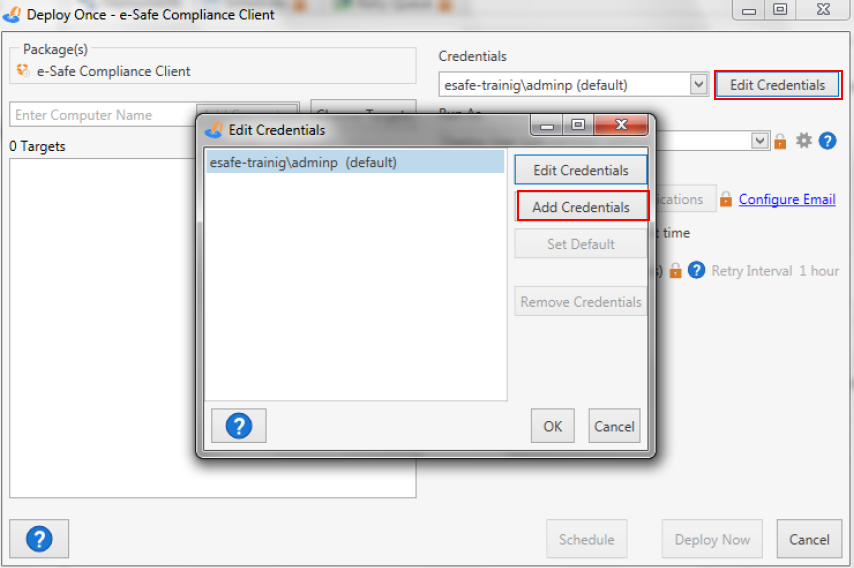
Enter the Domain, User Name (administrator account), Password, and click Test Credentials to verify access, then click OK.
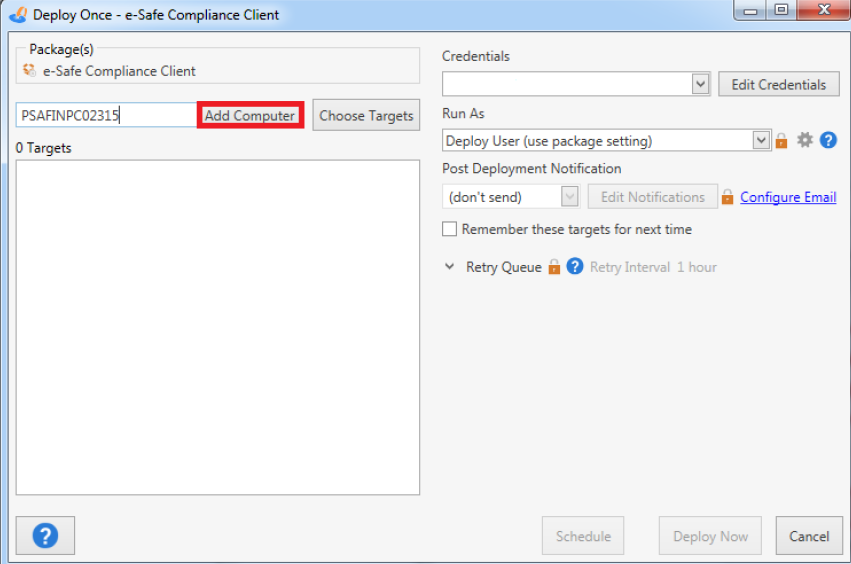
Add the target computers for deployment:
You can specify devices using either their PC Name or IP Address.
Click Add Computer after entering each one.
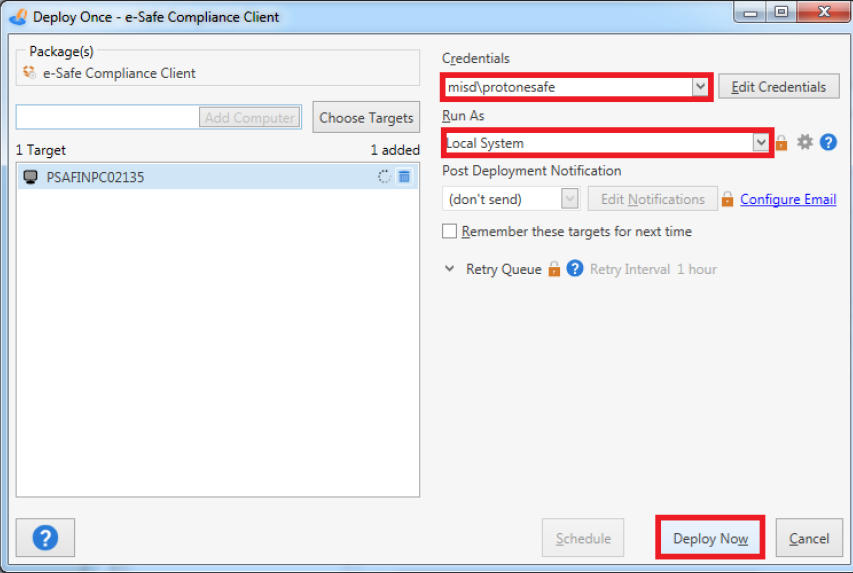
Select the appropriate Credentials and ensure Run as Local System is set to Yes.
Click Deploy Now to start the installation.
PDQ Deploy will perform the following actions automatically:
Copy the GuardWare INSIGHT Agent installer file to each target machine.
Run the installation silently in the background.
Display real-time status updates for each target device.
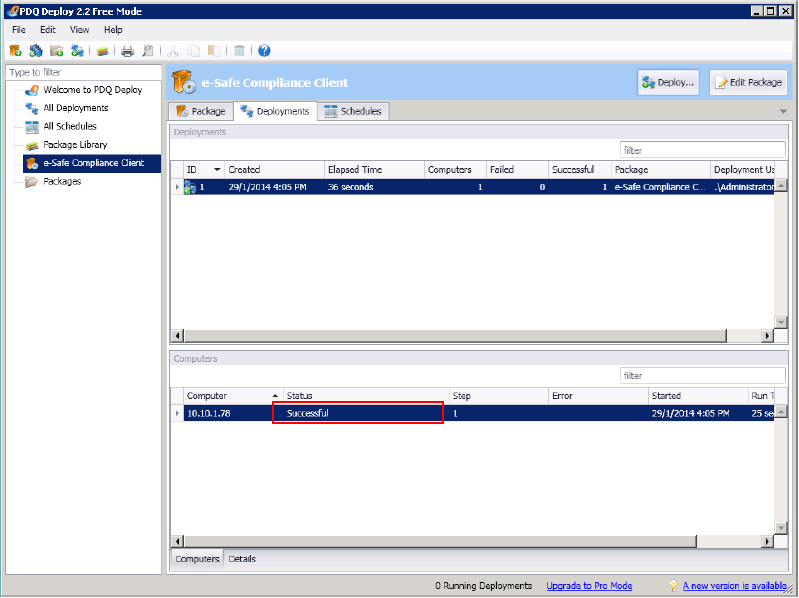
Once deployment is complete, the status will display as Successful for each device where the installation finished.
Last updated